You can simulate an HID reader using Virtual Serial Port Driver and RealTerm (or most any terminal emulator).
There are many virtual serial port and terminal emulator applications; feel free to use the ones you feel most comfortable with.
Virtual Serial Port Driver
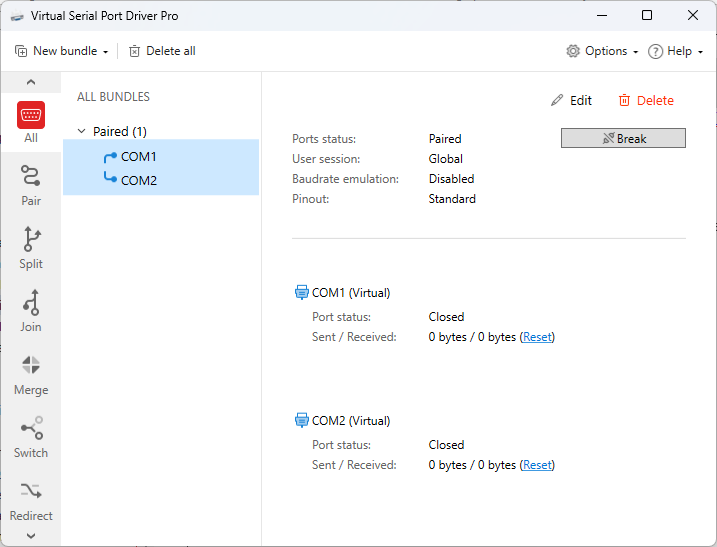
Use Virtual Serial Port Driver to create a pair of connected virtual serial ports. One port will be used by RealTerm to send data and second used by Dispatch 3.2 to receive the data.
You can download Virtual Serial Port Driver here:
Download Virtual Serial Port Driver
In our example, RealTerm uses COM1 and Dispatch 3.2 uses COM2.
A guide to creating a pair of connected virtual serial ports is located here:
Card reader settings
Click Settings and select Card reader in the Devices category. Select the Device tab.
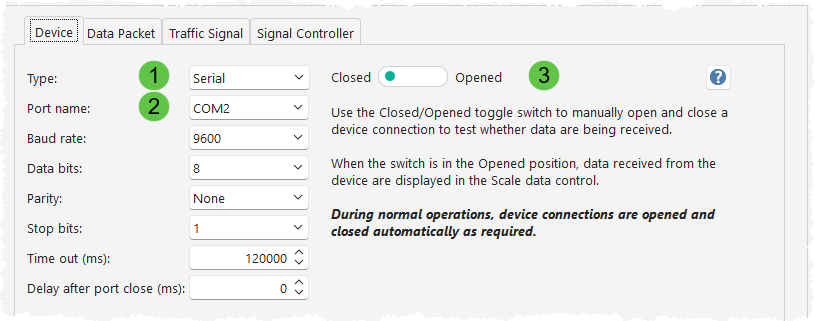
1.Set Type to Serial.
2.Select Port name COM2.
3.Click the Closed/Open switch.
Click the Data Packet tab.
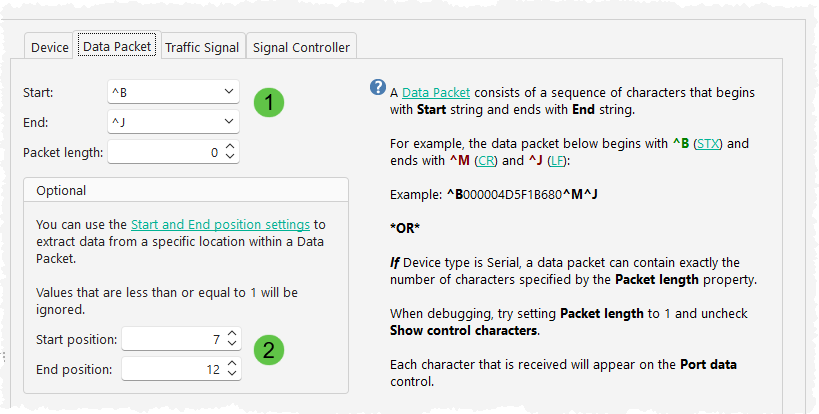
1. Set Start to ^B and End to ^J. Packet length is 0.
2. Set Start position to 7 and End position to 12.
RealTerm settings
RealTerm is used to send a string of characters that mimics the data sent by an HID reader.
In our example, RealTerm uses COM1.
Download the RealTerm setup file here:
Start RealTerm. Select the Port tab.
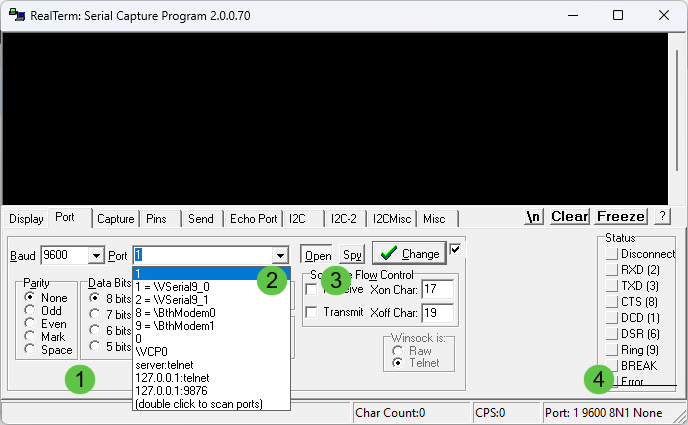
1.Change the port setting Baud 9600, Parity None and Stop Bits one.
2.Select Port 1.
3.Click the Open button once to close the Port and then once again to reopen it.
4.Confirm that the port settings are correct.
Sample data
These strings can be copied and pasted to the RealTerm Send tab and sent using the Send ASCII method:
A.\x02000004D5F1B680\r\n
B.\x02000004D5F1B983\r\n
C.\x02000004D5F1BA84\r\n
D.\x02000004D5F1BC86\r\n
E.\x02000004D5F1BF89\r\n
Select the Send tab.
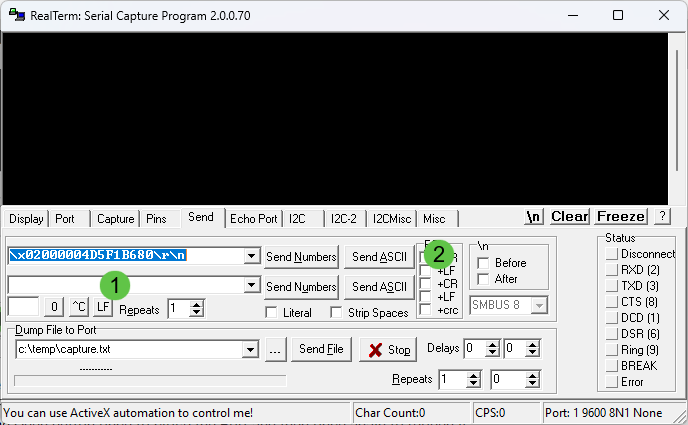
1.Copy and paste one of the sample data items. In this example we have used item A.
2.Click the Send ASCII button.
Check Card reader settings for the sample data
Go back to Card reader settings.
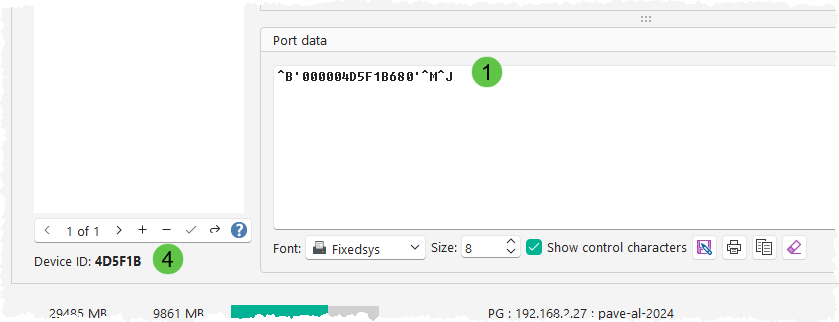
1. The entire example data string appears in the Port data control.
2. The extracted ID appears to the right of the Device ID label.